


Vacation
Follow the below screenshot (Figure 1.3.15) to enable vacation response in the desktop view of webmail interface (mobile view has similar steps).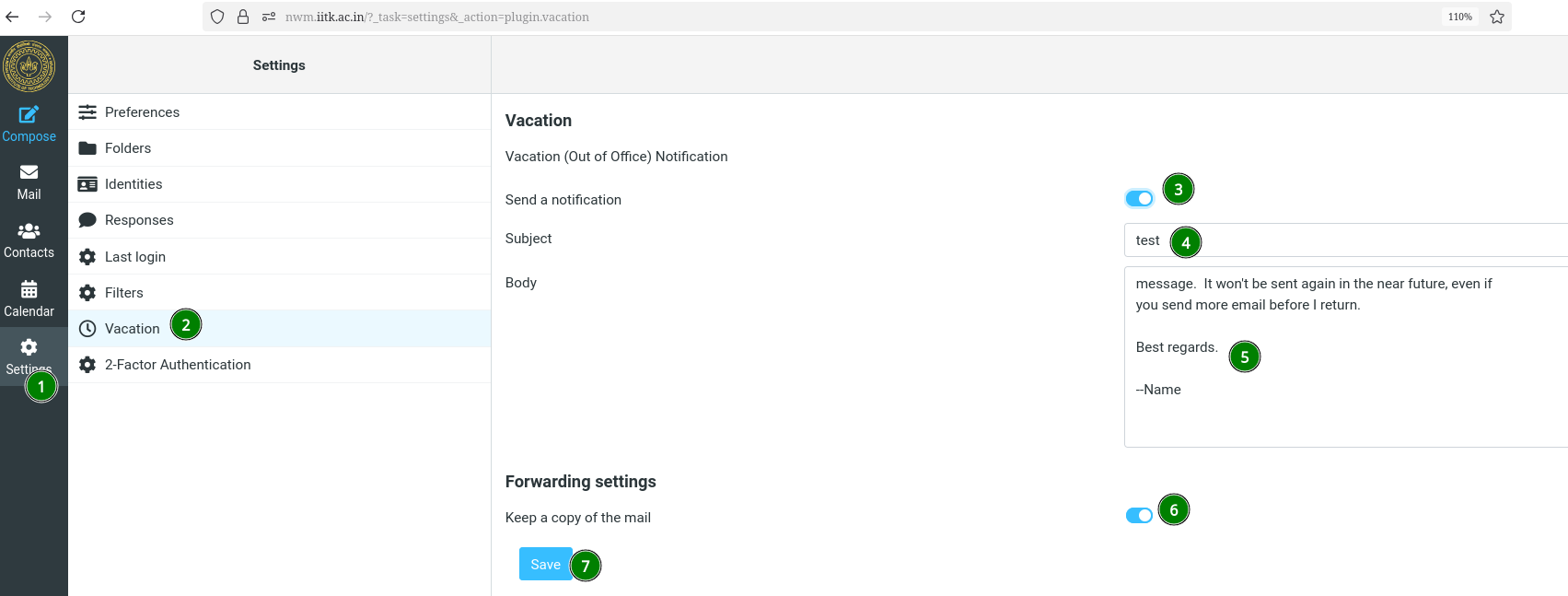
Please note the green numbering in the above figure 1.3.15, and the explanation of each point is given below.
- Click on settings.
- Click on vacation.
- This will enable vacation notification to sender.
- Change subject if required.
- This will be the body of the mail which will be received by the email sender during your vacation.
- Must keep it enabled, else emails received during vacation will not be saved.
- Save to enable.