


Abaqus 2026
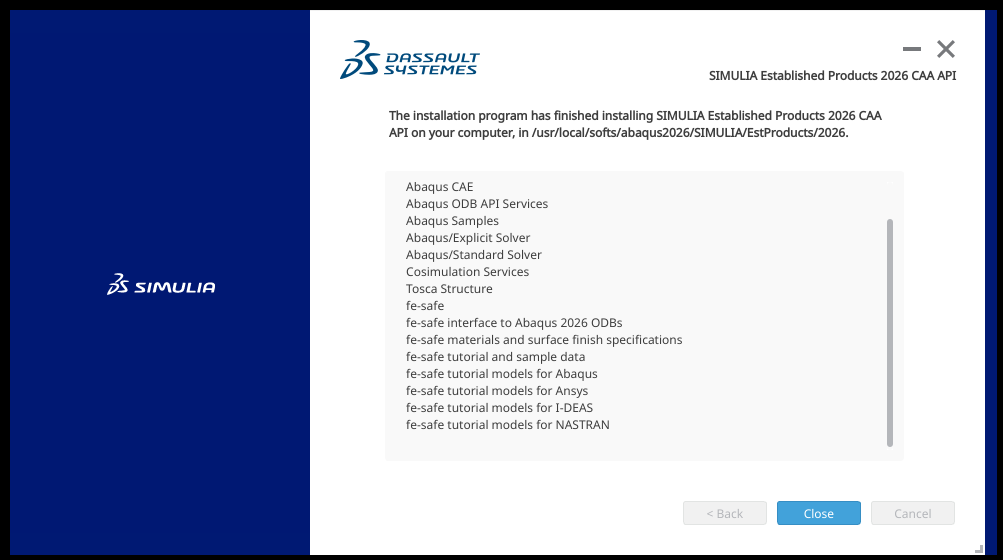
Following set of images should guide through the installation steps of Abaqus2026. For any missing steps look at the documentation of version 2026. The software can be downloaded from the link http://ftp.cc.iitk.ac.in/Linux/Abaqus/.Decompress and start the installation.
	# tar -xvf filename. (Extract all the files)
	#/home/admusr/Downloads/AM_SIM_Abaqus_Extend.AllOS/1/StartGUI.sh
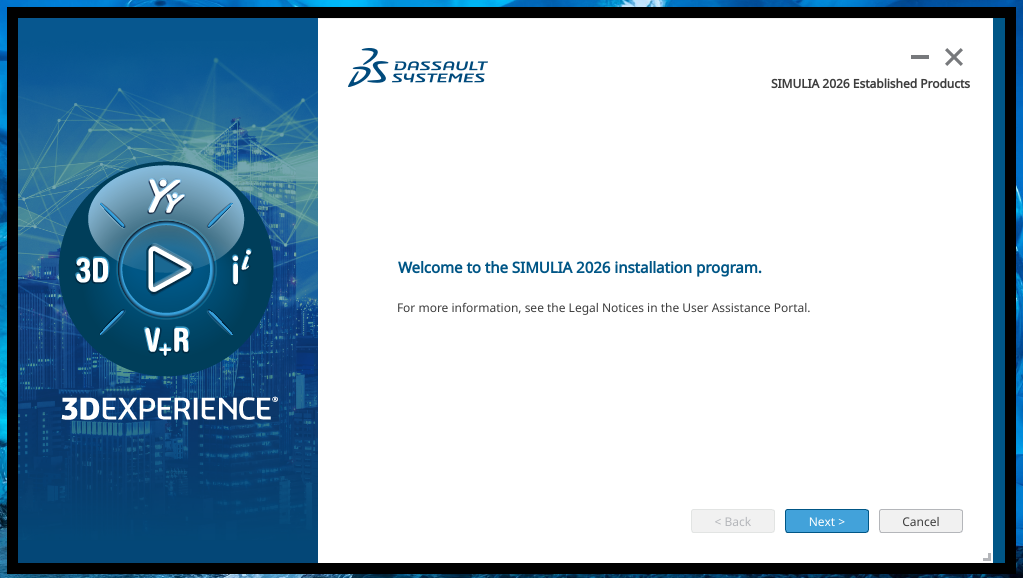

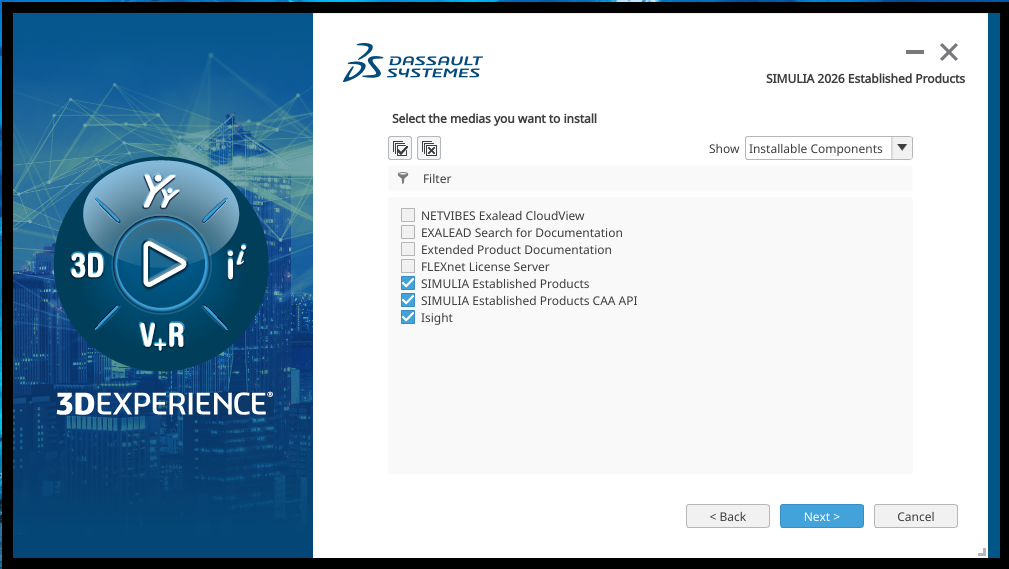
Click next with the default selection.
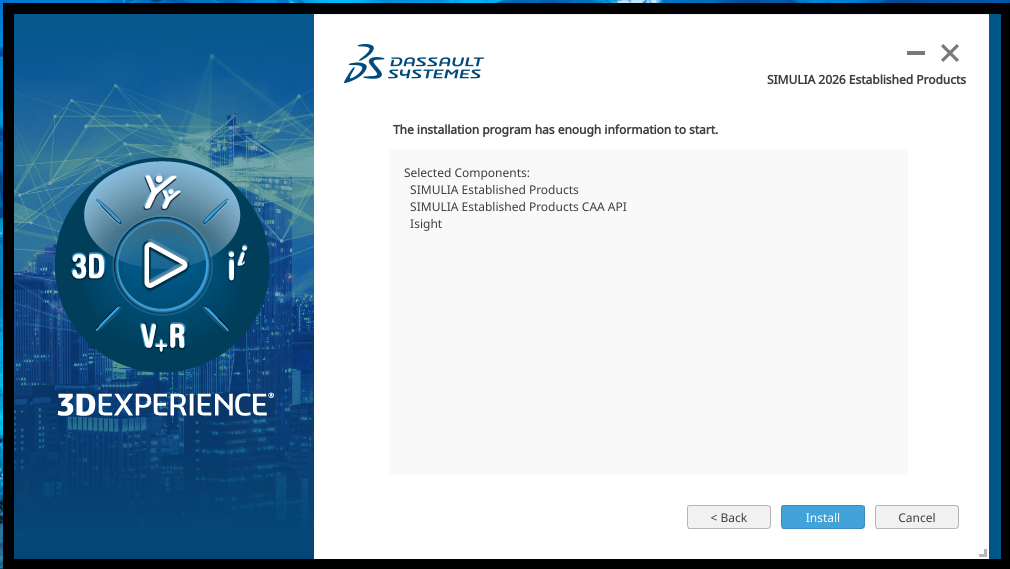
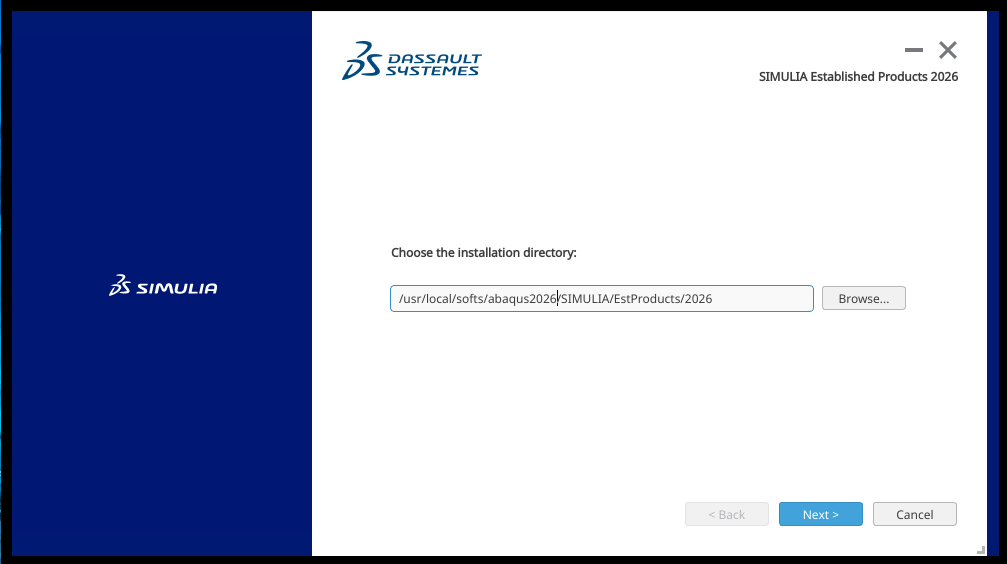
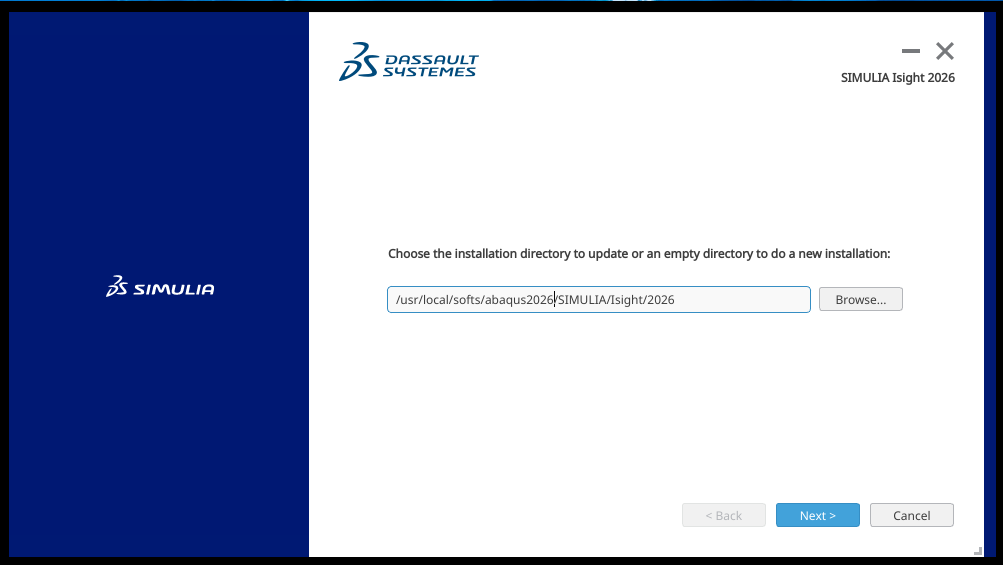
Click on Install. Browse to desired installation directory and click on Next.
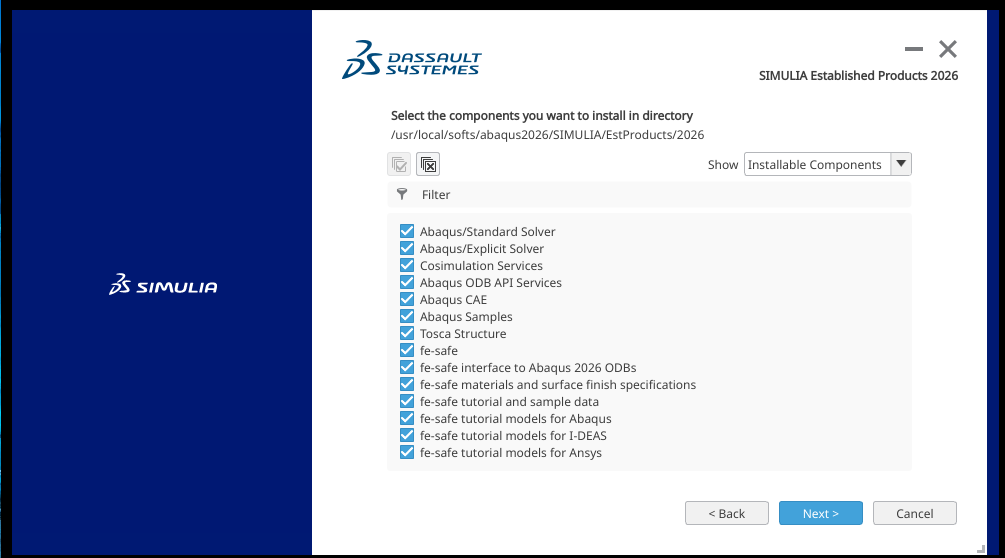
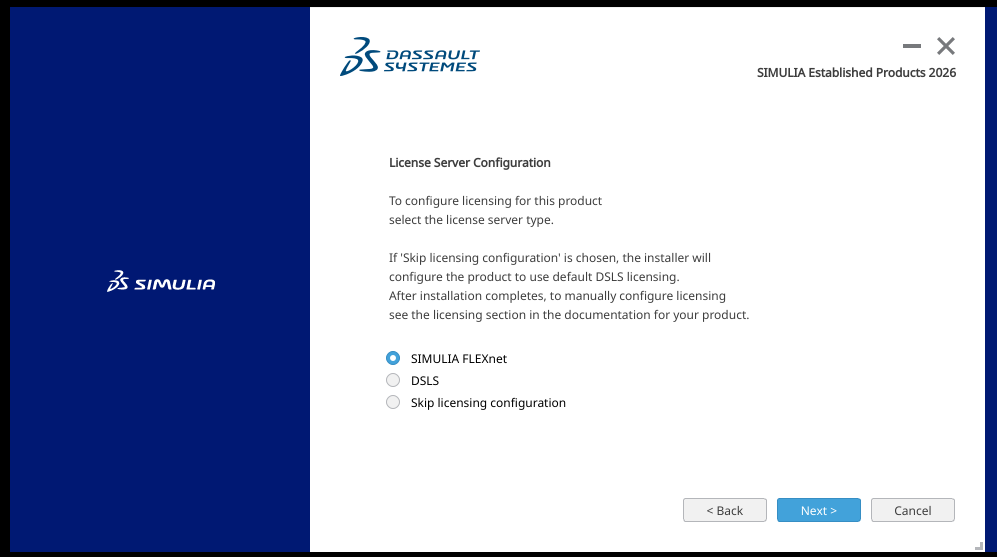
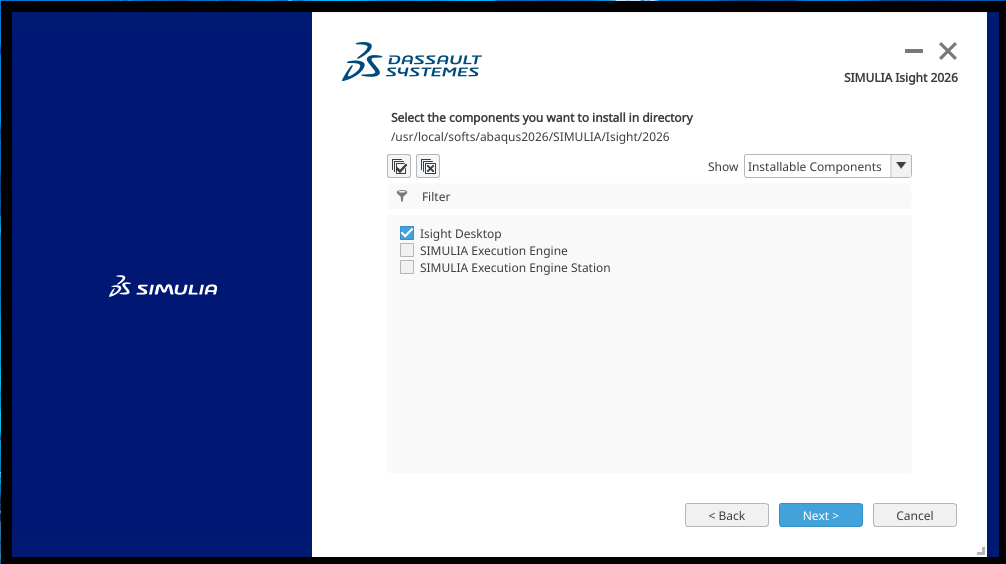
Select the component that you want to install. Select SIMULIA FLEXnet as license server type.
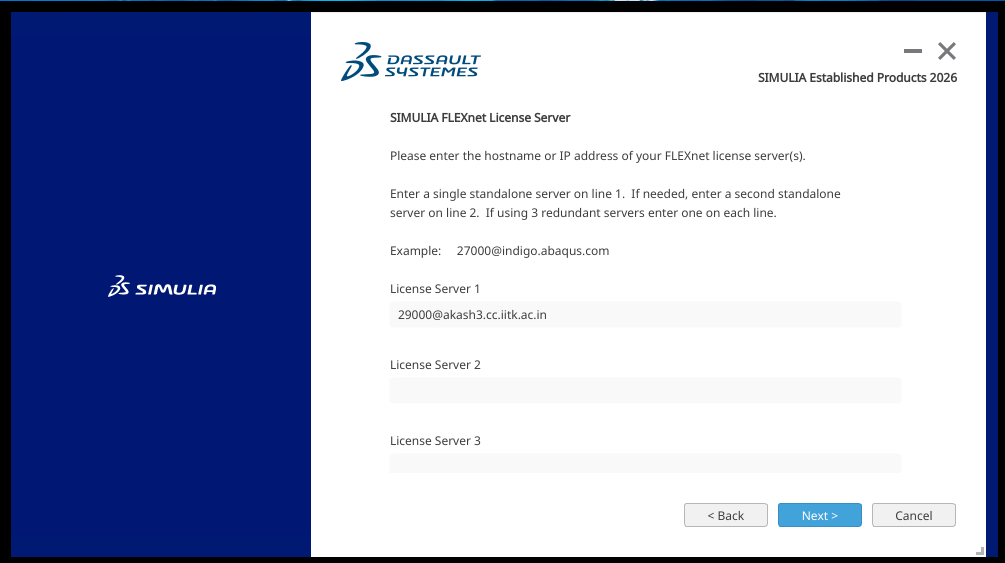
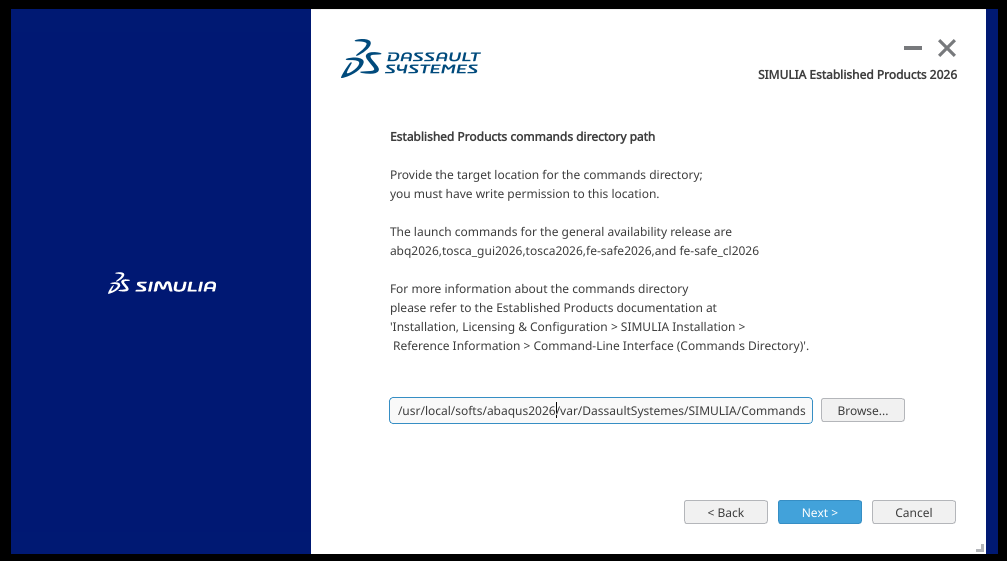
Use 29000@akash3.cc.iitk.ac.in as license server. Browse to desired command directory path and click Next.
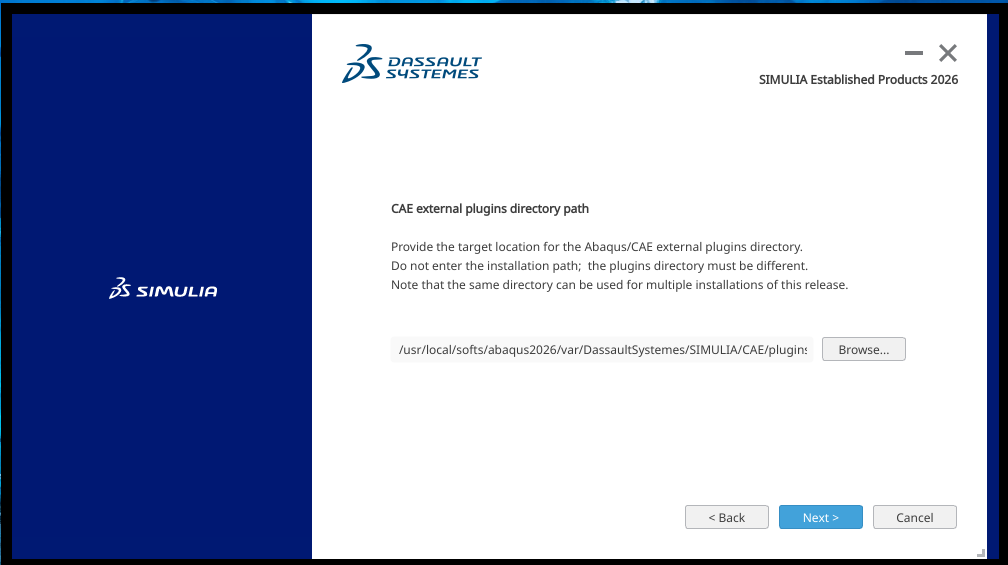
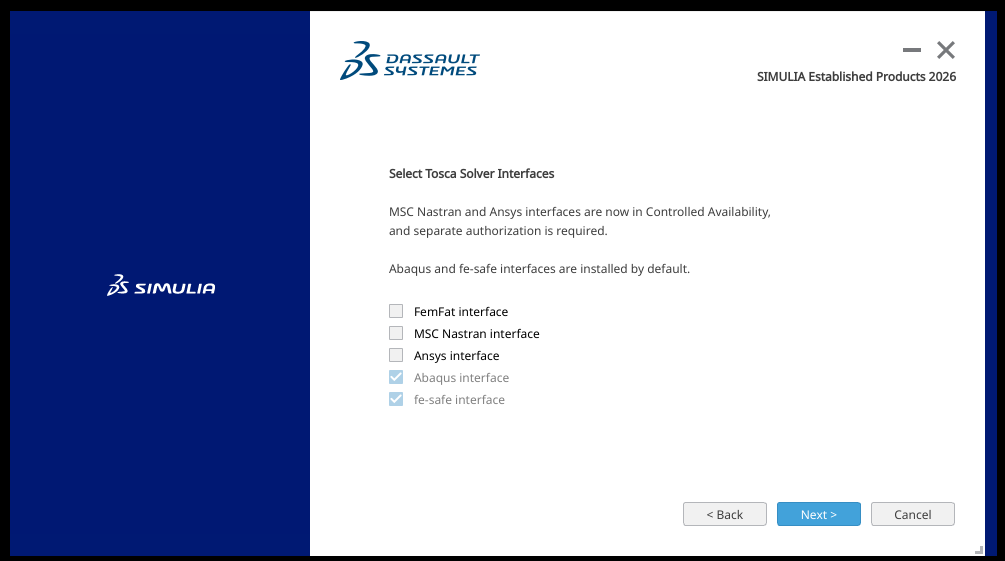
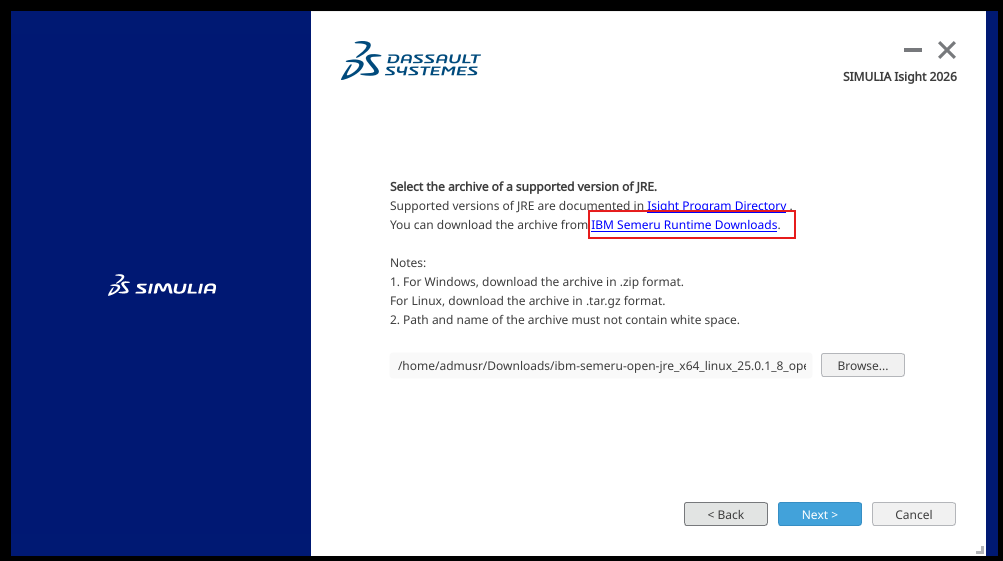
Select the external plugin directory path and click Next.
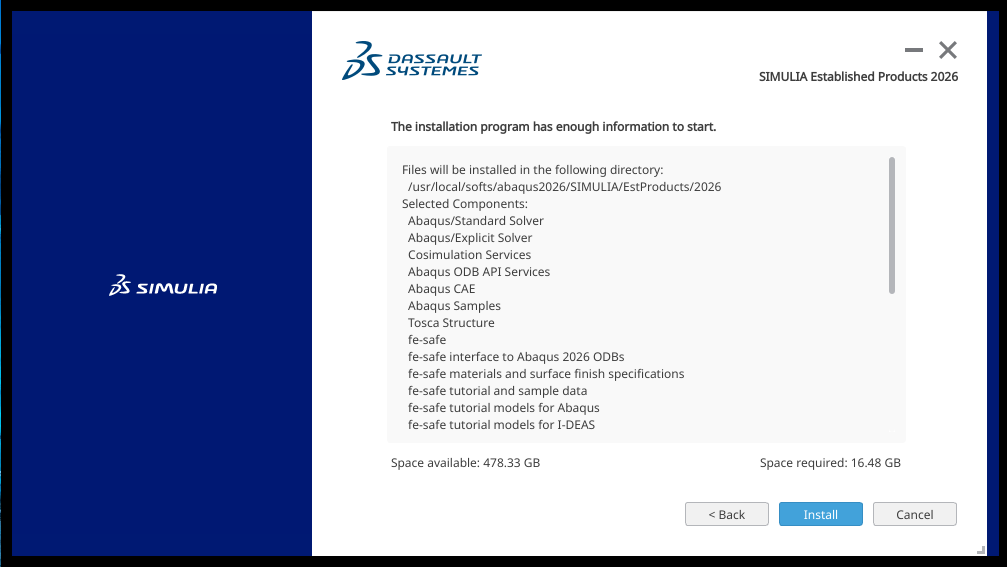
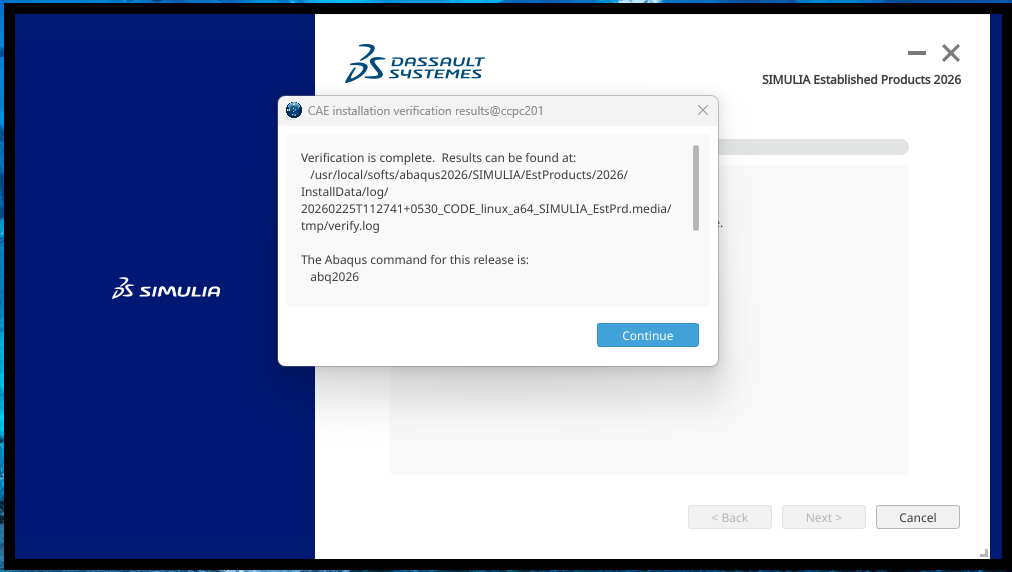
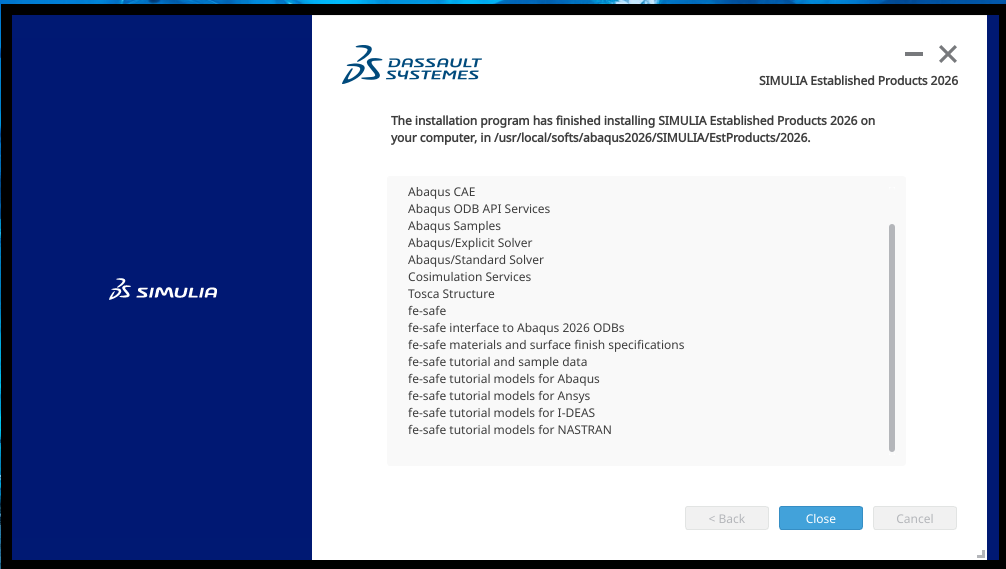
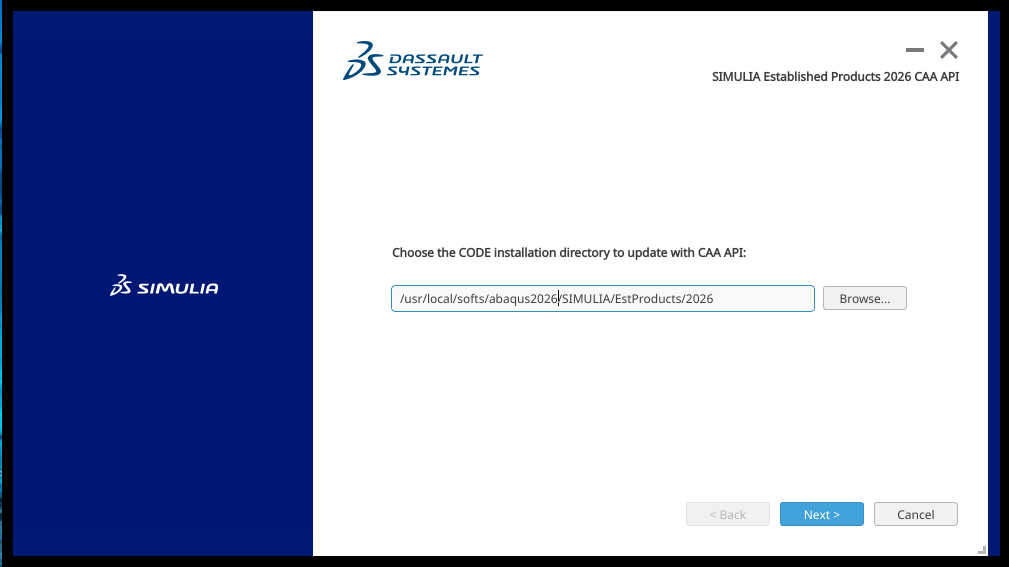
Choose the CODE installation directory and click Next
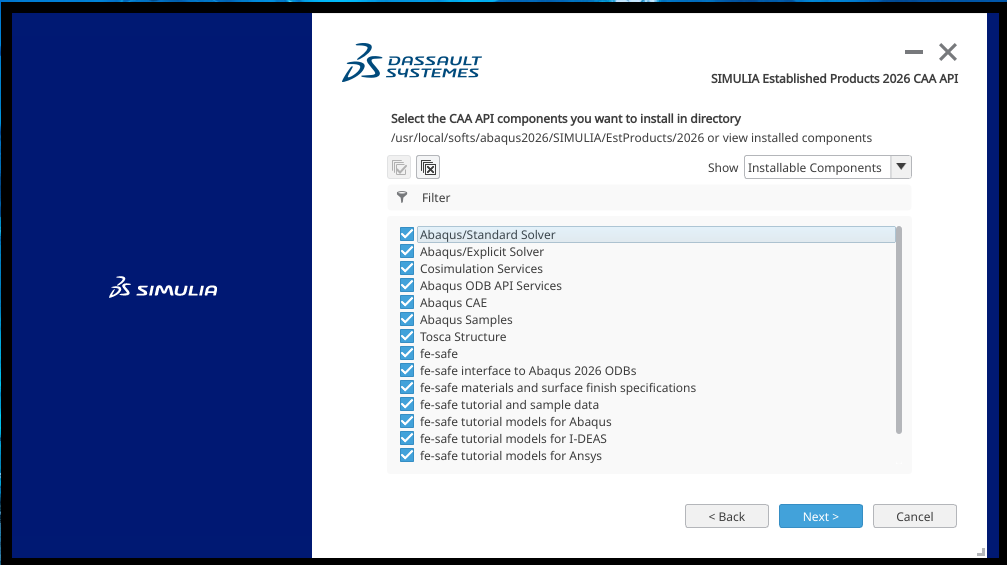
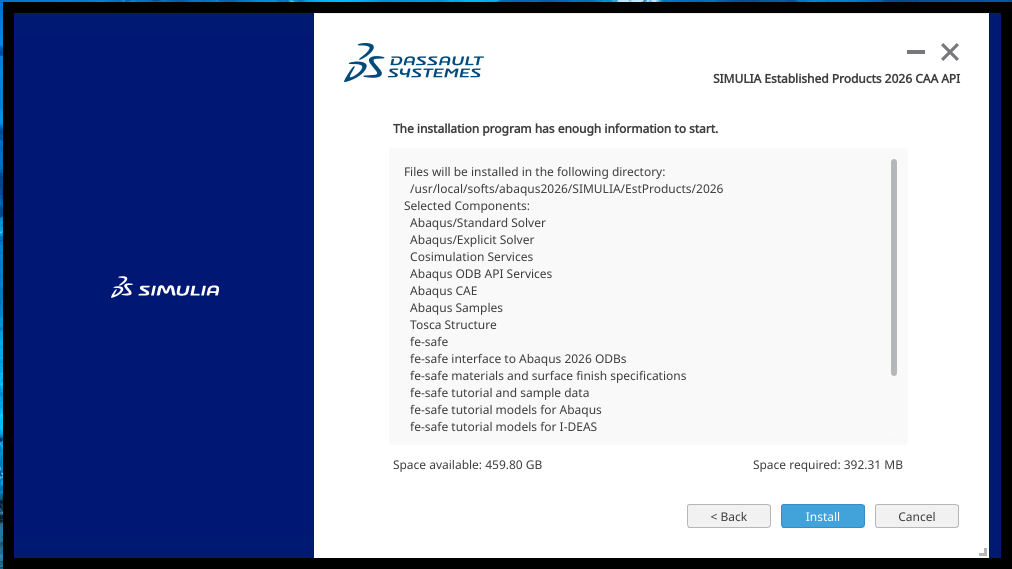
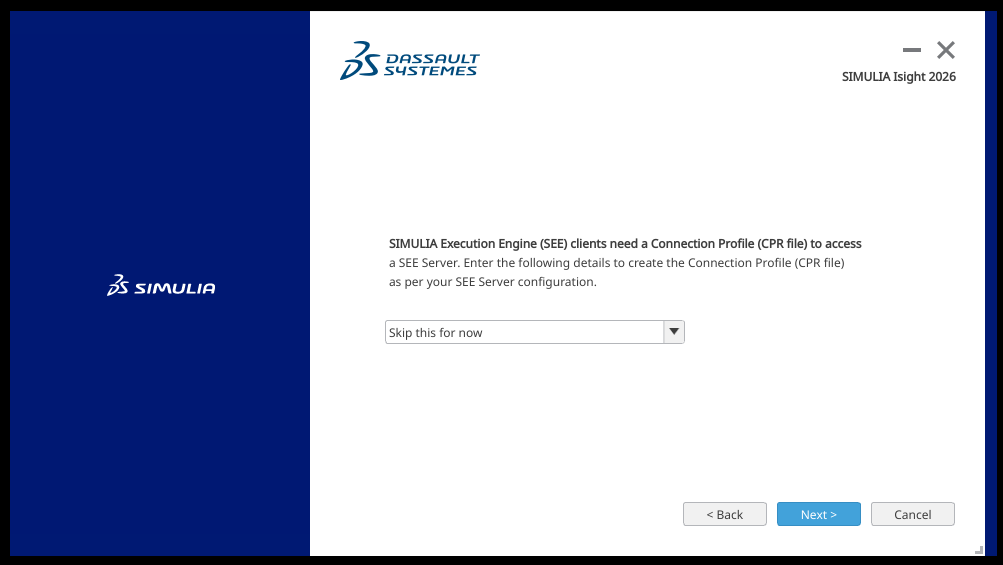
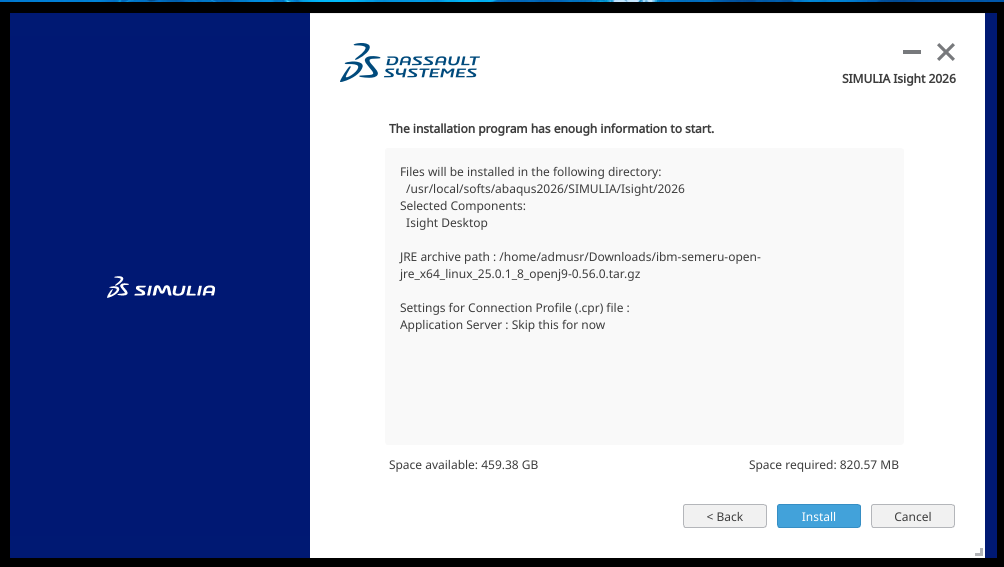
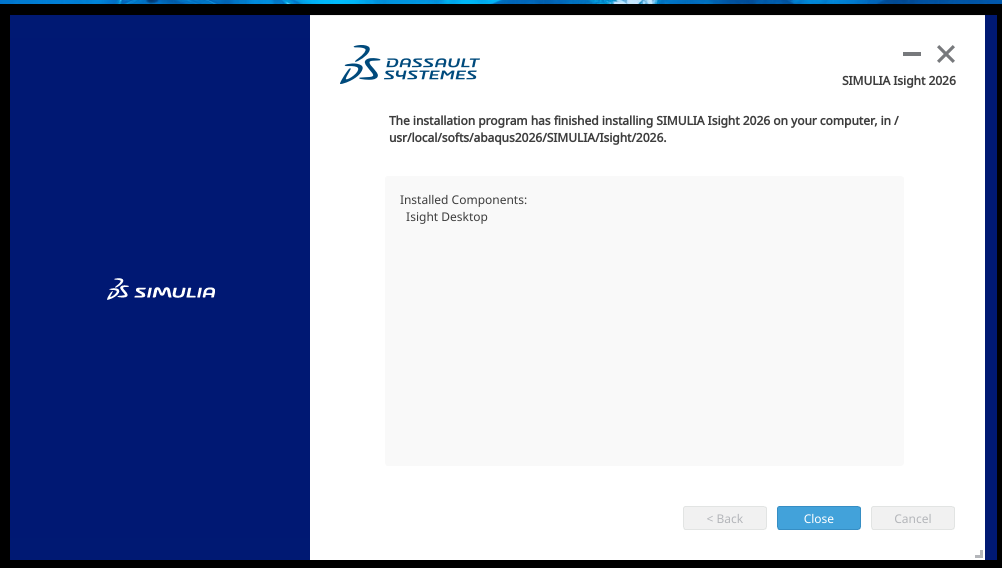
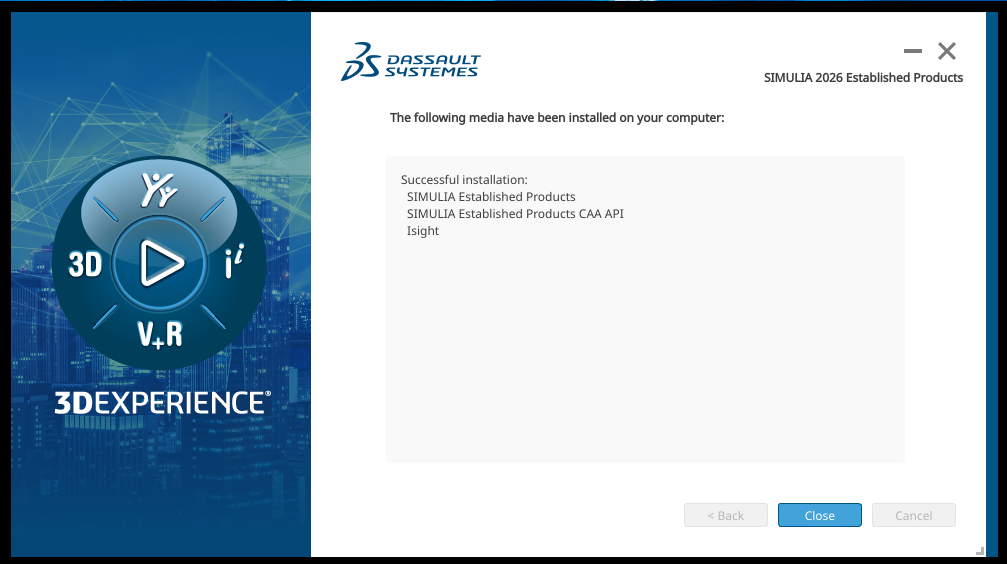
- Following steps mat be followed to configure abaqus2026 after installation.
- Default Behavior (Abaqus 2026) is to use DSLS licensing. IITK has FEXnet Licensing so modify/add the following file.
		# vi  /usr/local/softs/abaqus2026/SIMULIA/EstProducts/2026/linux_a64/SMA/site/custom_v6.env
		license_server_type = FLEXNET
		abaquslm_license_file = '29000@akash3.cc.iitk.ac.in'
- Remote Abaqus/CAE Access via SSH (X11 Forwarding: edit /etc/ssh/sshd_config
		X11Forwarding yes
		X11DisplayOffset 10
		X11UseLocalhost yes
- Restart SSH, and verify DISPLAY environmental variable (should be localhost:10.0 or localhost:11.0)
		$ sudo systemctl restart sshd
		$ echo $DISPLAY
- Setup Abaqus Environment by editing /etc/profile.d/abaqus.sh
	export PATH=$PATH:/usr/local/softs/abaqus2026/var/DassaultSystemes/SIMULIA/Commands
	source /etc/profile
- Run abaqus
	$ abaqus -cae
	$ abq2026